01
Copy the video link
Open the video on YouTube. Copy its address from your browser, or use Share and then Copy link in the YouTube app.
Use the YTMP4 converter: paste a YouTube video link, choose a format and quality, and prepare your file.
The steps are short. Copy the video address, add it to the converter, then choose the file type and quality.
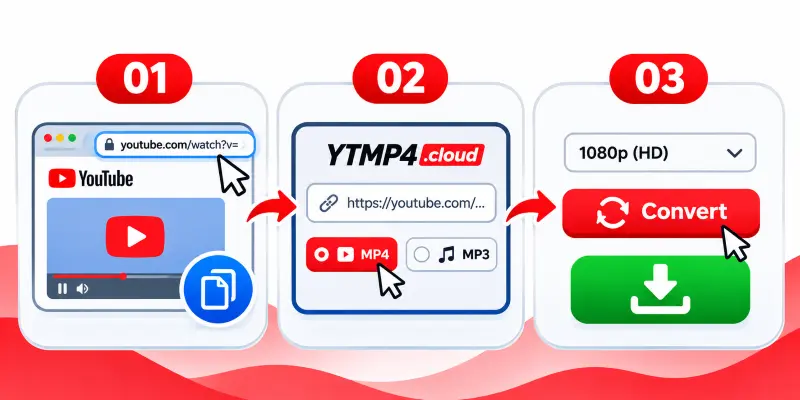
Open the video on YouTube. Copy its address from your browser, or use Share and then Copy link in the YouTube app.
Return to YTMP4.cloud and paste the full link into the URL field. Choose MP4 for video or MP3 for audio.
Select a quality and press Convert. When a file is ready, use the download option and check your device’s Downloads or Files folder.
Choose the file type and picture quality before you start. The options available for a particular video depend on its source.
Choose MP4 when you need a video file to play on a phone, computer or other compatible device.
Select MP3 when you only need the audio track. The available audio quality depends on the source and conversion service.
Choose from the quality options shown in the converter. Higher resolution usually means a larger file.
Open the page in a browser on your phone, tablet or computer. The steps for saving the finished file vary by device.
A Shorts URL is a YouTube video link. Paste its full address in the same field and check which options are available.
Processing time can increase with video length and file size. Any length limit depends on the conversion service in use.
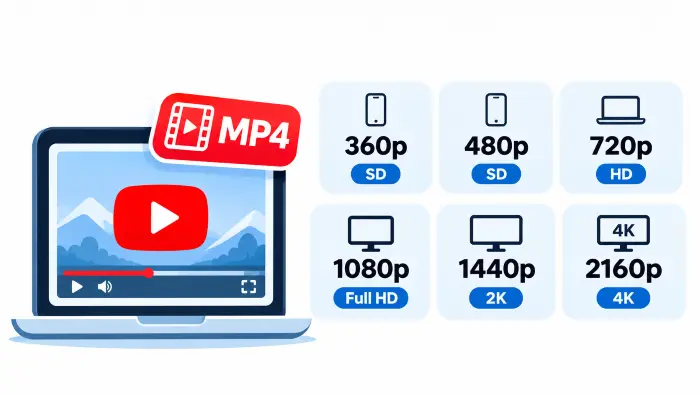
A higher number means more picture detail, but it also takes more storage and data. Pick the size that suits the screen and connection you use.
| Resolution | Common name | Useful for |
|---|---|---|
| 360p | Standard | Small screens and lower data use |
| 480p | SD | Everyday viewing on a phone |
| 720p | HD | Clear picture on phones and laptops |
| 1080p | Full HD | Larger screens and sharper detail |
| 1440p | 2K / QHD | High-detail playback, when available |
| 2160p | 4K / UHD | 4K screens, when available |
The browser usually saves files to the device’s download location. On iPhone and iPad, you may need to choose where the file goes.
After the download starts, open the download control in Safari if it appears.
Chrome normally saves downloaded files to the device’s Downloads folder.
On a computer, downloaded files normally go to the Downloads folder unless you chose another location.
ChromeOS keeps browser downloads in the Downloads section of the Files app.
Shorts use YouTube video links, so you can paste a Shorts address into the same URL field.
Open the Short, tap Share, copy its link and paste it into the converter. The resolutions shown depend on the source video and the conversion service.
Paste a Shorts link ↑If you need the sound without the video, select MP3 in the converter before continuing.
An audio file takes less space than a video file in many cases. It can be useful for listening on a phone or computer with an audio player.
Audio bitrate options, such as 128, 192 or 320 kbps, depend on the conversion service. A higher bitrate cannot restore detail that was not present in the source audio.
Playlist conversion is a separate feature from converting one video. Check the live service for a playlist option before expecting a batch download.
This homepage is set up around one video link at a time. A playlist mode, batch selection and ZIP download should only be advertised once they are available in the connected conversion service.
Check the link and the source video first. These are common reasons a conversion may not start or may produce an unexpected file.
Copy the full address from YouTube again. Check that it belongs to a YouTube video and that no characters are missing from the link.
Try the conversion again or choose another available quality. At high resolutions, the service may need to combine separate audio and video streams.
The source may not have been uploaded at that resolution. Choose the highest option shown for the video.
Long videos and larger files can take longer. Keep the browser tab open while the service is processing the file, then try again if it stops responding.
Private, members-only, live or region-restricted videos may not be available to the conversion service. Try a publicly accessible video link.
Check Downloads on Android, Windows, Mac and Chromebook. On iPhone or iPad, open Files and check Downloads or the folder you selected.
Some conversion services set a maximum video length. Check the limit shown by the service; this page does not state a maximum until one is confirmed.
Keep the browser open until the download begins. If the phone locks or the tab closes, return to the page and check whether the download is still active.
The right method depends on whether you need a separate file or only want offline playback inside YouTube.
| Method | What you get | Useful when |
|---|---|---|
| YTMP4 converter | A separate MP4 or MP3 file, when supported by the connected service | You need a file in your device storage |
| YouTube Premium downloads | Offline playback inside the YouTube app | You want to watch later in the YouTube app |
| Desktop download tools | Options vary by application; some support queues, formats and detailed settings | You need desktop controls or batch workflows |
YouTube Premium offline downloads stay inside the YouTube app. They are not ordinary MP4 files that you can move to another player or edit as a separate video.
A few details about links, formats, quality and downloaded files.